OnDemand at QMUL
Overview
OnDemand is an HPC portal designed to provide an easy way to access interactive graphical applications on the Apocrita HPC cluster.
While most jobs are submitted in batch mode using the command line, there is sometimes a requirement to prepare workloads interactively in a graphical environment. OnDemand offers a seamless way to request HPC resources to do this.
Accessing OnDemand
OnDemand is available to users with both:
- an active QMUL email account
- an active Apocrita account with the same username
You can access it by visiting https://ondemand.hpc.qmul.ac.uk. You will be redirected redirected through the QMUL Single Sign-On gateway / Multi-Factor Authentication and you may have to authenticate if you have not already accessed other QMUL services recently with your browser (i.e. Web Mail or QMPlus).
Getting started
After logging in, the published applications can be quickly accessed from the "Interactive Apps" drop-down menu, or via the "My Interactive Sessions" menu, which also shows any recent sessions.

Applications are categorised by whether they run in a graphical desktop environment (GUIs) or if they are a web service (Servers).
OnDemand allows access to graphical applications through a browser interface which provides many benefits over displaying an X-window back to your machine:
- Very responsive
- No local X server application is required
- Easy to resume - you don't lose your work if the connection drops
- Don't need to use the command line or SSH tunnels to establish your session
Using OnDemand to run applications for data visualisation allows you to keep the data on Apocrita and reduces the need to copy data back to your local workstation. Any locally-stored files would first need to be uploaded to Apocrita before they can be accessed with OnDemand, which can only use the Apocrita Research Data Storage.
Use batch jobs where possible
OnDemand should not replace batch job submission using sbatch,
since batch jobs use resources most efficiently. We envisage OnDemand being
used during interactive development of workflows (such as RStudio), or for
data visualisation.
Launching applications
Once you've selected an application, choose a Slurm account and partition. These selections control which resources are available to you within that application. The account and partitions available will vary according to your Slurm access and, due to the resource limitations of some applications, not all applications will show these options.

After selecting an account and partition, set the required resources for your session and click Launch. A few example options are shown below.
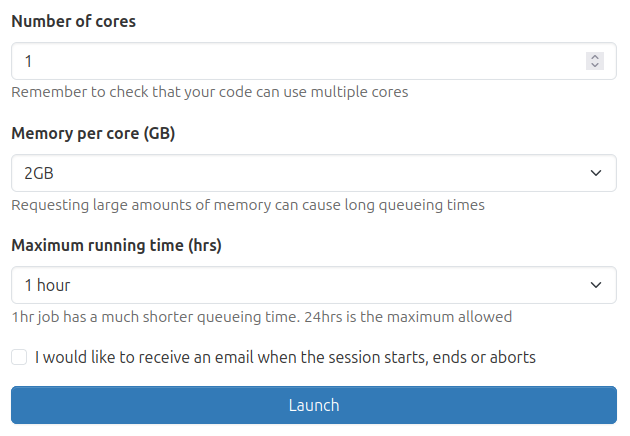
Applications will default to 1 task (core) but where applications offer multi-threading the option to select additional tasks (cores) will be available.
For many use-cases, including non-computational visualisation and many Jupyter/RStudio sessions, a maximum of 1 task (core) will be used by the application, so additional requesting additional resources will only serve to delay your request being scheduled.
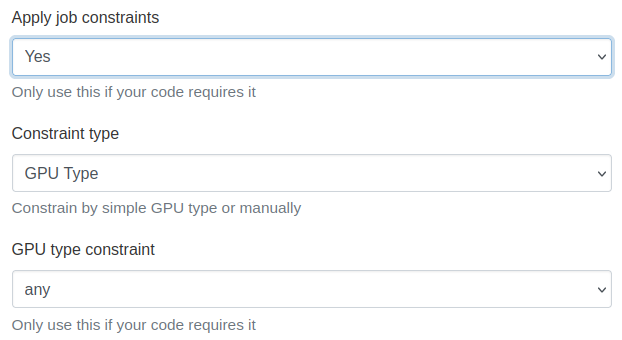
When selecting GPUs the appropriate resources will be automatically allocated, unless you select the option "Apply job constraints." Selecting this option will allow you to tailor the GPU resources that are required for your job. Note that applying these constraints will restrict the available resources, which may result in a longer queue time.
Choosing a 1 hour maximum running time is the best option for getting a session quickly, though a 24 hour option is available if you requiring a longer if you require a longer session.
There is also the option to request an email to notify you when the job changes state.
This equivalent of using the --mail-type=ALL and will cover the job starting or ending,
regardless of the final state.
For graphical applications, once the session is established, you have the option to alter the image quality and compression level. For most cases, using the defaults should be fine, but for precise graphical work, or taking screenshots, you may want to increase the image quality.

Also note the View Only link. While OnDemand sessions are private and accessible only to you, this link allows you to share a read-only view of your session — useful for letting a collaborator monitor job progress or demonstrating your work to a colleague.
Session persistence
A session remains active for the time period you have requested it for. If you have finished your work, then we recommend that you close the application cleanly, followed by clicking Delete next to your session on My Interactive Sessions page. This will release resources back to the cluster.
If you are running a graphical application which uses a desktop environment, any computation will continue even after the browser tab is closed. Clicking Launch again from the My Interactive Sessions screen will reconnect to the session.
Closing a browser tab while running a web service session such as Jupyter or RStudio will interrupt computation, in the same way as it would if you did the same while running Jupyter locally on your own PC. Jupyter and RStudio both offer ways to save and checkpoint your work if you want to resume later.
Citing use of OnDemand
As well as acknowledging use of Apocrita, if you use OnDemand for your research, you may cite: Hudak et al., (2018). Open OnDemand: A web-based client portal for HPC centers. Journal of Open Source Software, 3(25), 622, https://doi.org/10.21105/joss.00622