Using TensorBoard via OnDemand
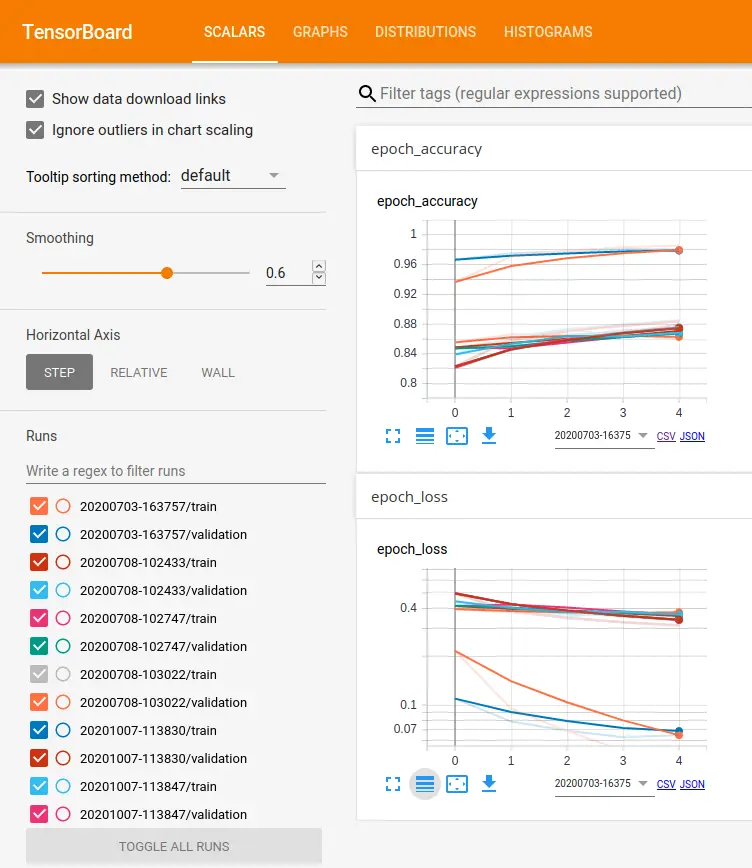
TensorBoard is a tool for providing visualisation and measurements needed during the machine learning workflow with TensorFlow. Features include:
- tracking metrics such as loss and accuracy
- displaying image/audio data
- visualising the model graph
These visualisations can help you understand if your model has converged, or if you are overfitting. Use the getting started guide to use TensorBoard with your code.
Please refer to the overview section for instructions on how to login to OnDemand.
Starting a TensorBoard session
Select TensorBoard from the Servers list of the Interactive Apps drop-down menu, or from the My Interactive Sessions page.
In addition to the resources your job will need, including the version
of TensorBoard required, you will need to specify the location of the logs for
TensorBoard to visualise. This can be an absolute path, or one relative to your
home directory. In the example below, the relative path of ./logs is used, but
$HOME/logs would be equivalent.
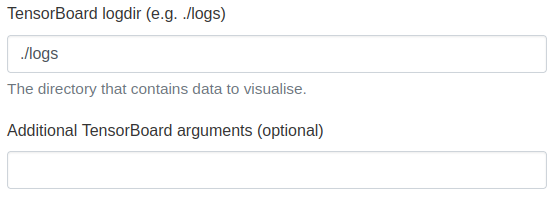
Once you have chosen the resources your job will need, including the version of TensorBoard required, click the Launch to queue the job. Once resources are allocated, click the blue Launch TensorBoard button to connect to your session.
Since TensorBoard visualises the current state of the TensorFlow logs, choosing a maximum of 1 hour running time would be ideal, since 1-hour jobs run from the short jobs queue and are usually executed immediately. If your TensorFlow job is running for a few days, you can simply check on progress by starting a new 1-hour TensorBoard session on an ad-hoc basis.
Exiting the session
Closing the browser tab will close the current connection to TensorBoard. You can connect again by inspecting your running sessions from the My Interactive Sessions menu item. Sessions will be deleted if the requested running time is exceeded, but if you have finished your TensorBoard session, it is good practice to click the Delete button for that session to return resources to the cluster.