Using ParaView via OnDemand
ParaView is an open-source, multi-platform data analysis and visualisation application. ParaView users can quickly build visualisations to analyse their data using qualitative and quantitative techniques. Using ParaView on Apocrita via OnDemand allows you to run a GUI interface. Please refer to the overview section for instructions on how to login to OnDemand.
Starting a ParaView session
Select ParaView from the GUIs list of the Interactive Apps drop-down menu, or from the My Interactive Sessions page.
Once you have chosen the resources your job will need, including the version of ParaView required, click the Launch to queue the job. Once resources are allocated, click the blue Launch ParaView button to connect to your session.
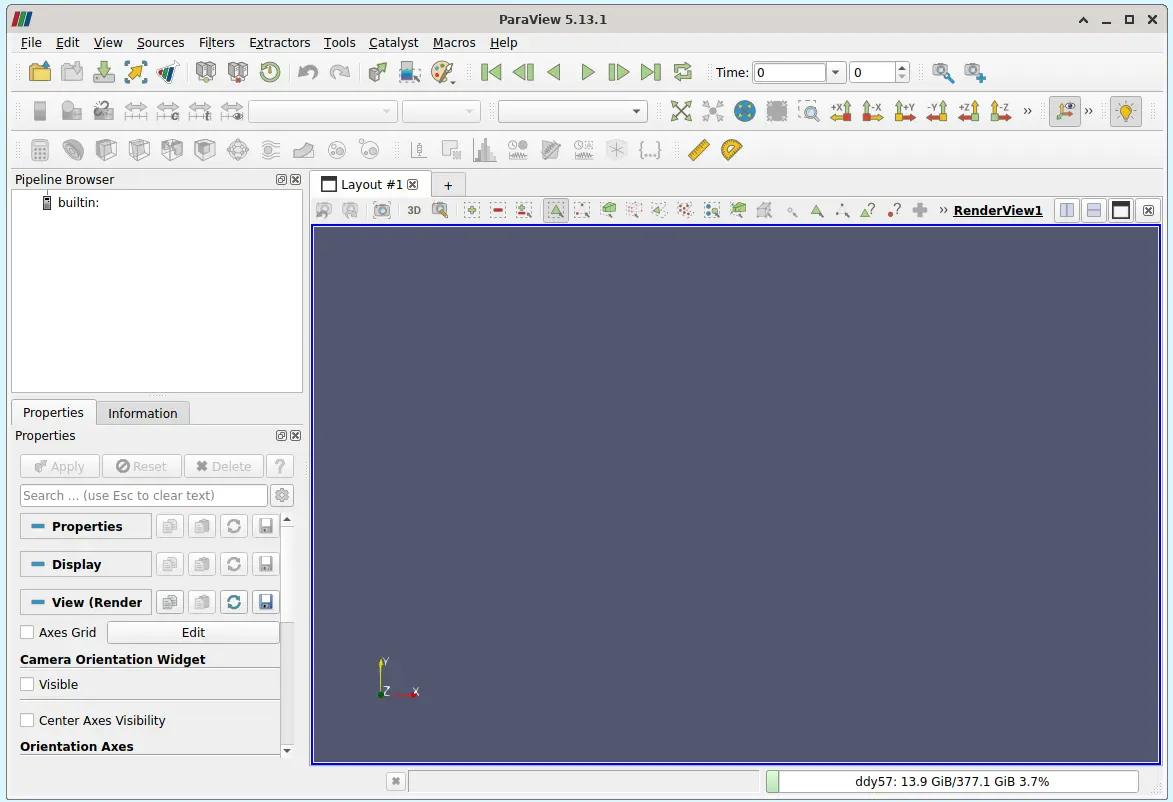
Once connected, the familiar ParaView interface is presented, and you will be able to use the allocated resources, and access your research data located on Apocrita.
Exiting the session
If a session exceeds the requested running time, it will be killed. You can finish your session using one of the following methods:
- clicking [x] in the upper right corner of the ParaView application
- selecting File -> Exit from the application menus
- clicking the red Delete button for the relevant session on the My Interactive Sessions page.
After a session ends, the resources will be returned to the cluster queues.