Array jobs
A common requirement is to be able to run the same job a large number of times, with different input parameters. Whilst this could be done by submitting lots of individual jobs, a more efficient and robust way is to use an array job. Using an array job also allows you to circumvent the maximum jobs per user limitation, and manage the submission process more elegantly.
Arrays can be thought of as a for loop:
for NUM in 1 2 3
do
    echo $NUM
done
Is equivalent to:
#!/bin/bash
#SBATCH -n 1               # (or --ntasks=1) Request 1 core
#SBATCH --mem-per-cpu=1G   # Request 1GB RAM per core
#SBATCH -t 1:0:0           # Request 1 hour runtime
#SBATCH -a 1-3             # (or --array=1-3) Request array for range 1-3

echo ${SLURM_ARRAY_TASK_ID}
Here the -a option configures the number of iterations in your sbatch script and
the counter (the equivalent of $NUM in the for loop example) is
$SLURM_ARRAY_TASK_ID.
To run an array job use the -a option to specify the range of tasks to run.
Now, when the job is run the script will be run with $SLURM_ARRAY_TASK_ID set to
each value specified by -a. The values for -a can be any integer range, with the
option to increase the step size. In the following example,: -a 20-30:5 will
produce 20 25 30 and run 3 tasks.
#!/bin/bash
#SBATCH -n 1               # (or --ntasks=1) Request 1 core
#SBATCH --mem-per-cpu=1G   # Request 1GB RAM per core
#SBATCH -t 1:0:0           # Request 1 hour runtime
#SBATCH -a 20-30:5         # (or --array=20-30:5) Request array for range 20-30
                           # incrementing in steps of 5

echo "Sleeping for ${SLURM_ARRAY_TASK_ID} seconds"
sleep ${SLURM_ARRAY_TASK_ID}
The only difference between the individual tasks is the value of the
$SLURM_ARRAY_TASK_ID environment variable. This value can be used to reference
different parameter sets etc. from within a job.
Output files for array jobs will include the task id to differentiate output from each task e.g.
testarray-123_1.out
testarray-123_2.out
testarray-123_3.out
Running single task from array job
If you need to rerun a single task from an array job (for example, if the 5th
task of 100 hit the execution time limit), you can resubmit just that task by
specifying the task id with the -a option when submitting the job. For
example: sbatch -a 5 array_job.sh.
Email notifications and large arrays
Email notifications are not enabled for array jobs, as the sending of a large number of email messages causes problems with the receiving mail servers, and even service disruption.
Processing files
If you need to process lots of files, then you can set up an appropriate list
using ls -1. e.g. if your files are all named EN<something>.txt :
ls -1 EN*.txt > list_of_files.txt
Now find out how many files there are:
$ wc -l list_of_files.txt
35 list_of_files.txt
Then set the -a option to the appropriate number:
#SBATCH -a 1-35
You can then use sed to select the correct line of the file for each iteration:
INPUT_FILE=$(sed -n "${SLURM_ARRAY_TASK_ID}p" list_of_files.txt)
Which results in the final script:
#!/bin/bash
#SBATCH -n 1               # (or --ntasks=1) Request 1 core
#SBATCH --mem-per-cpu=1G   # Request 1GB RAM per core
#SBATCH -t 1:0:0           # Request 1 hour runtime
#SBATCH -a 1-35            # (or --array=1-35) Request array for range 1-35

INPUT_FILE=$(sed -n "${SLURM_ARRAY_TASK_ID}p" list_of_files.txt)
example-program < $INPUT_FILE
Processing directories
Consider processing the contents of a collection of 1000 directories, called test1 to test1000.
#!/bin/bash
#SBATCH -n 1               # (or --ntasks=1) Request 1 core
#SBATCH --mem-per-cpu=1G   # Request 1GB RAM per core
#SBATCH -t 1:0:0           # Request 1 hour runtime
#SBATCH -a 1-1000          # (or --array=1-1000) Request array for range 1-1000

cd test${SLURM_ARRAY_TASK_ID}
./program < input
Tasks are started in order of the array index.
Passing arguments to an application
The following example runs an application with differing arguments obtained from a text file:
$ cat list_of_args.txt
-i 50 52 54 -s 10
-i 60 62 64 -s 20
-i 70 72 74 -s 30
#!/bin/bash
#SBATCH -n 1               # (or --ntasks=1) Request 1 core
#SBATCH --mem-per-cpu=1G   # Request 1GB RAM per core
#SBATCH -t 1:0:0           # Request 1 hour runtime
#SBATCH -a 1-3             # (or --array=1-3) Request array for range 1-3

INPUT_ARGS=$(sed -n "${SLURM_ARRAY_TASK_ID}p" list_of_args.txt)
./program $INPUT_ARGS
Would result in 3 job tasks being submitted, using a different set of input arguments, specified on each line of the text file.
Task concurrency
Task concurrency (%N) is the number of array tasks allowed to run at the
same time, this can be used to limit the number of tasks running for larger
jobs, and jobs that may impact storage performance.
If you are running code that would possibly read or write to the same files
on the filesystem, you may need to use this option to avoid filesystem blocking.
Also, large numbers of jobs starting or finishing at the same moment puts an
extra load on the scheduler. This is limited when using the % throttle.
#!/bin/bash
#SBATCH -n 1               # (or --ntasks=1) Request 1 core
#SBATCH --mem-per-cpu=1G   # Request 1GB RAM per core
#SBATCH -t 1:0:0           # Request 1 hour runtime
#SBATCH -a 1-1000%5        # (or --array=1-1000%5) Request array for range 1-1000
                           # with a limit of 5 at the same time

cd test${SLURM_ARRAY_TASK_ID}
./program < input
You can alter the % value while the job is running with scontrol update. For
example, to change the concurrency of an array job to a value of ten:
scontrol update JobId=<jobid> ArrayTaskThrottle=10
Writing job output to an alternative location
Each array task will write its own output file, so you can expect to see many
job output files in the same directory as your submission script. This may not
be desirable, especially if the array job is large. A good method to help track
job output files is to use the -J and -o options for job names and output
format:
#SBATCH -J JobName         # (or --job-name=JobName) Assigned name to job
#SBATCH -o %x.o%A.%a       # (or --output=%x.o%A.%a) Set format of
                           # output filename
This will generate files using the job name (%x), job number (%a) and task number (%a):
JobName.o1234.1
JobName.o1234.2
JobName.o1234.3
You can further simplify keeping track of jobs by changing the location of the job
output files. To achieve this, simply add the #SBATCH -o LOCATION/%x.o%A.%a, where
LOCATION is an absolute or relative path to a directory. The %x.o%A.%a options will
ensure that the output files are correctly labelled with the job name (%x), job number (%A)
and task number (%a). Please be aware that if the directory does not exist then it
will be created by the job.
For example, to redirect the job output files to a directory called logs in
the same directory as the submission script, change your submission script to
include the following:
#SBATCH -J JobName         # (or --job-name=JobName) Assigned name to job
#SBATCH -o logs/%x.o%A.%a  # (or --output=%x.o%A.%a) Set format of
                           # output filename
This will automatically create a directory named logs and use that location for
the output files generated. If running several similar array jobs, consider creating
a new sub-directory inside logs for each array job, and redirecting the output to
that directory instead of the main logs directory.
Holding specific tasks from a queued array job
The scontrol hold command will temporarily place a hold on queued jobs to
stop them from starting. A hold applied to a currently running job will continue
to run and will not be halted. This can be useful if you notice a lot of your
jobs are failing - holding jobs will stop potential failures from other queued
tasks within the same array job.
For example, to hold tasks 20-60 of job 3388, to stop them from starting, run:
scontrol hold 3388_20-60
After applying a hold, these tasks will never run until released with scontrol release.
Held jobs and tasks will be displayed in JobHeldUser state when running squeue.
Deleting specific tasks from a queued array job
To delete tasks from an array, use the scancel command and specify the job number along
with either individual task id(s), or a range of task ids.
For example, to delete tasks 20-60 of job 3388, run:
scancel 3388_[20-60]
This will delete the tasks regardless if they are running, queued or held.
Re-submitting specific tasks from an array job
If specific tasks in your array job did not complete successfully or were prematurely deleted before they could run, you may want to re-submit those tasks; rather than re-submitting the entire array, you can re-submit specific tasks after correcting the original issue.
For example, to re-submit tasks 2-5, 17 and 35-36 from the original 60-task
array, either modify the -a option in your job script for each task range
and re-submit, or override the -a option on the sbatch line, as shown
below:
sbatch -a [2-5,17,35-36] example.sh
The task id range specified in the -a option argument may be a single
number or a range supported by Slurm.
Queuing dependent array tasks
If you have two array jobs of the same size and your workflow contains a
dependency where task N from array 2 must run after task N from array 1, you
may use the --dependency=aftercorr:JOBID parameter to achieve this.
An example use case could be that the second array does some processing after the results of the first array, and that you don't want to wait for the entire first array to complete, before the second array starts - this is specifically useful if your array jobs are large.
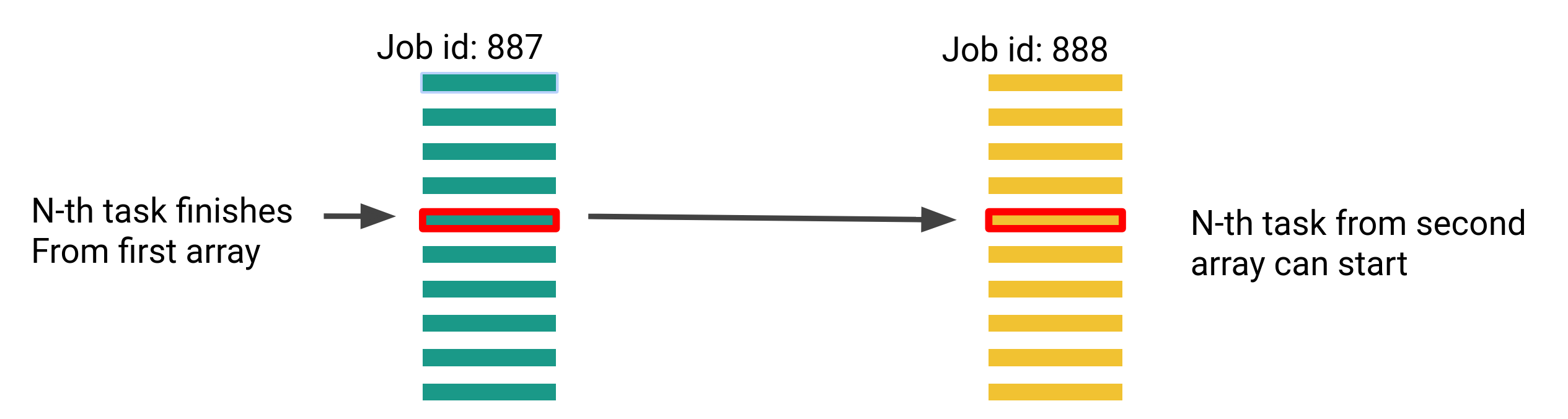
The following demonstrates an array task dependency for two jobs (887 and 888) each with 10,000 tasks, and a task concurrency of 5:
sbatch -a 1-10000%5 array1.sh
sbatch -a 1-10000%5 --dependency=aftercorr:887 array2.sh
We should expect to see tasks 1-5 running from array 887 initially, and when one of those 5 tasks complete, the respective task from array 888 will start running. The next task in 887 will also start running, resources permitted.
A second option is to use the --dependency=afterok:JOBID parameter. This will
launch the second array job only once all of the the tasks from the first array
have completed successfully.
Need help?
If you need help writing or using array job submission scripts, please see Getting Help.